TikTok Inplannen: How to Schedule TikTok Posts for Apps
Learn how to schedule TikTok posts (tiktok inplannen) via native TikTok Web Studio and automated tools to build a consistent app marketing workflow.
If you are looking for how to handle tiktok inplannen (scheduling TikTok posts in advance), you can do it natively for free via TikTok's Web Studio on desktop up to 10 days ahead, or use dedicated scheduling tools for long-term automation. For app founders and marketers, a recurring posting schedule keeps you consistently present on the For You Page (FYP) without spending hours manually uploading videos every single day.
Here is how native TikTok scheduling works, where native tools fall short for app marketing, and how to automate video creation and scheduling into a reliable queue.
How Native TikTok Scheduling Works (TikTok Web Studio & Drafts)
TikTok provides a built-in scheduler accessible via desktop browsers at tiktok.com. Creator and Business accounts can use Web Studio to upload pre-edited video files and set publication dates.
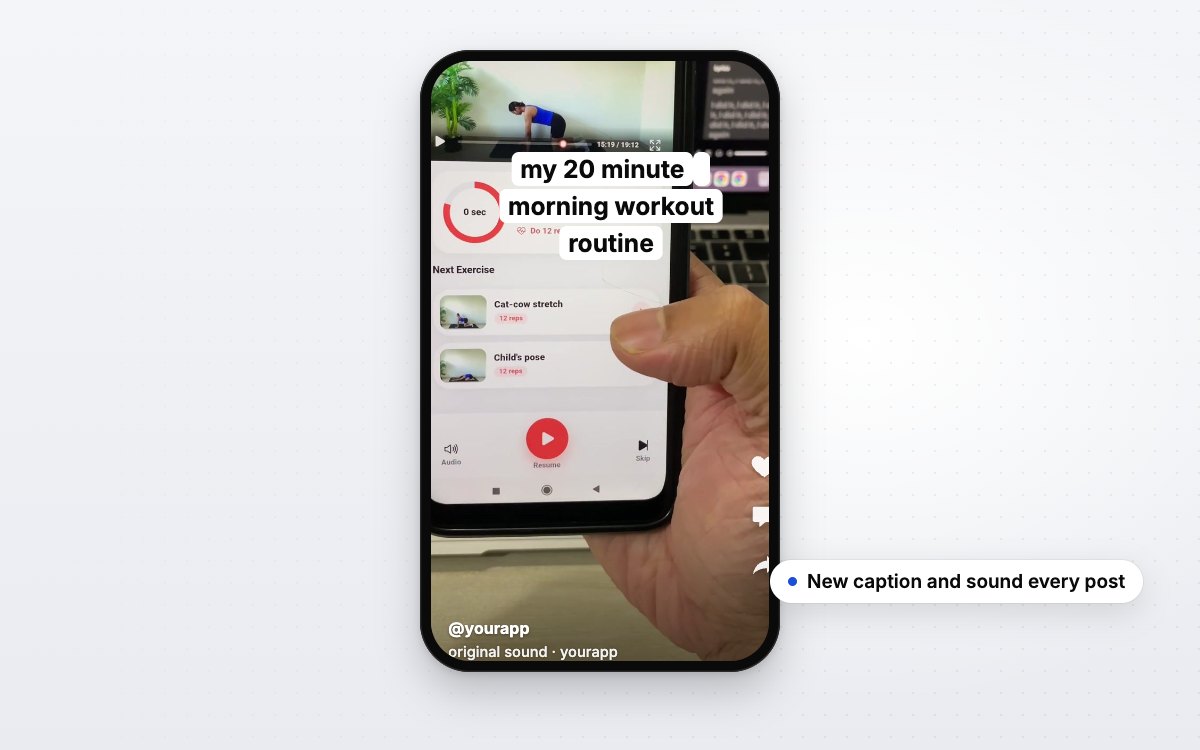
Native Web Scheduler Workflow
- Log in on desktop: Go to tiktok.com on your web browser and sign into your TikTok Creator or Business account.
- Upload file: Click the Upload button in the top-right corner. Drag and drop your vertical MP4 file (9:16 aspect ratio, 1080x1920 pixels).
- Set captions & cover: Write your caption, add relevant hashtags, select a video cover frame, and choose on-screen cover text.
- Enable Schedule: Toggle the Schedule video switch on.
- Select date and time: Choose your preferred posting date (up to 10 days in advance) and time slot in 15-minute increments.
- Schedule post: Click Schedule. Your video is now queued on TikTok's servers.
Comparing Native Web Scheduler vs. Mobile Drafts
| Feature | TikTok Native Web Scheduler | TikTok Mobile App Drafts |
|---|---|---|
| Platform | Desktop browser (tiktok.com) | iOS & Android mobile app |
| Max Horizon | Up to 10 days in advance | Unlimited (saved locally on device) |
| Auto-Publishing | Yes (posts automatically at scheduled time) | No (requires manual tap to publish) |
| Native Audio Editing | Limited to uploaded audio or web sounds | Full access to TikTok trending audio library |
| Photo Slideshows | Basic support | Full native carousel editing |
Native desktop scheduling works well if you have finished MP4 files ready to upload. However, it has clear limitations: a 10-day scheduling cap, no bulk upload capabilities, desktop-only access, and no automated way to generate videos or photo carousels from your app screenshots.
Native Scheduling vs Automated Tool Workflows
When you scale app marketing to posting 2–3 times daily across multiple account angles, manual native scheduling breaks down quickly. You constantly hit the 10-day scheduling limit and spend hours re-uploading individual screen recordings.
Dedicated scheduling platforms like ClipsPilot solve this bottleneck by generating creatives automatically from your app assets and scheduling them months in advance.
Feature Comparison: Native Web vs. Dedicated Scheduler
| Capability | Native TikTok Web | Dedicated TikTok Scheduler (ClipsPilot) |
|---|---|---|
| Scheduling Horizon | 10 days max | Unlimited / Bulk Queue |
| Creative Generation | None (upload finished video only) | Automated (Slideshows, Hook & Demo, Captions) |
| Draft Review Workflow | No draft pushing from desktop | Push generated posts directly to TikTok Drafts |
| Multi-Account Support | Switch logins manually | Manage multiple accounts in one dashboard |
| Photo Carousel Support | Manual slide assembly | Automated listicle carousels via Slideshow Autopilot |
The Draft Review Workflow is particularly effective for app founders: instead of publishing live instantly, automated posts are pushed to your mobile TikTok app's Drafts. This lets you make quick 5-second tweaks—like adding a trending audio track or refining caption tags—before tapping publish.
Designing a High-Yield Weekly TikTok Post Schedule for Apps
For a new app account, consistency beats volume spikes. Aiming for 1 to 3 posts per day yields optimal test data without degrading content quality. Read our guide on how often to post on TikTok for a deeper breakdown.
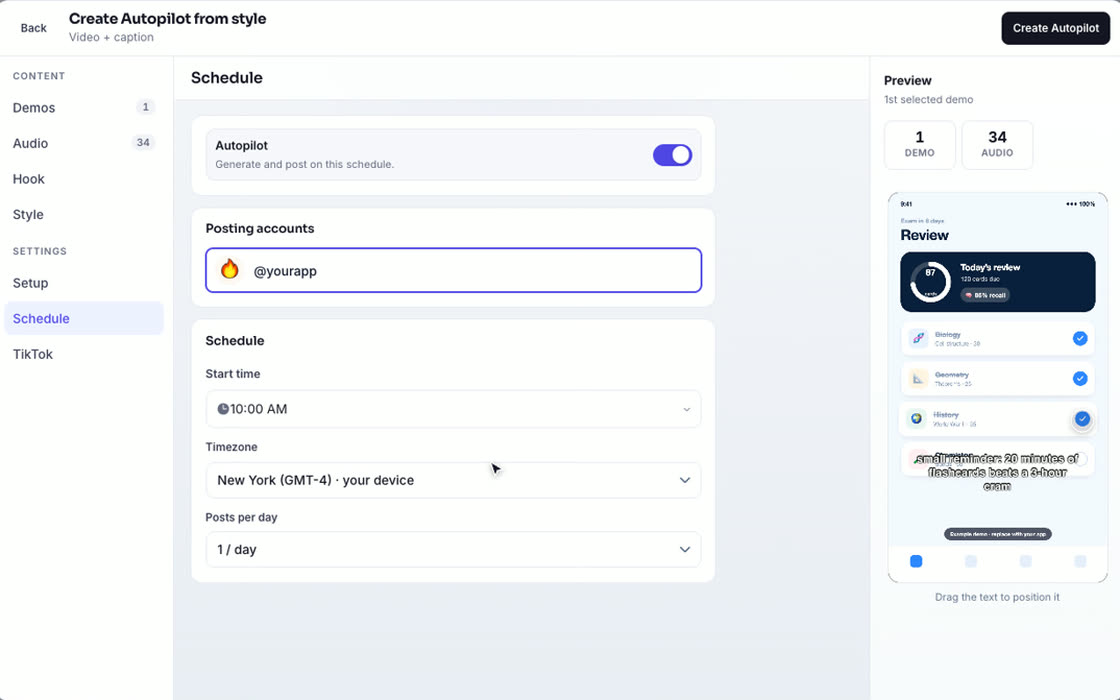
Rather than posting at generic "peak hours," tie your scheduled slots to your target audience's timezone (e.g., EST or PST for US market apps).
7-Day App Marketing Scheduling Matrix
| Day | Time Slot 1 (Morning) | Time Slot 2 (Afternoon) | Time Slot 3 (Evening) |
|---|---|---|---|
| Monday | Hook & Demo (Problem Focus) | Slideshow (5 Mistakes Listicle) | Video + Caption (Feature Showcase) |
| Tuesday | Fade In/Out Banner | Hook & Demo (Outcome Focus) | Slideshow (App Roundup) |
| Wednesday | Slideshow (Tips & Tricks) | Video + Caption (Onboarding Flow) | Hook & Demo (Contrarian Hook) |
| Thursday | Hook & Demo (POV Angle) | Slideshow (Productivity List) | Fade In/Out Banner |
| Friday | Video + Caption (UI Demo) | Hook & Demo (Before/After) | Slideshow (Weekend Checklist) |
| Saturday | Slideshow (Curated Photos) | Hook & Demo (Best Feature) | Video + Caption (Quick Tip) |
| Sunday | Hook & Demo (Week Prep) | Fade In/Out Banner | Slideshow (Top Tools List) |
Mixing formats—pairing Hook & Demo videos with text slideshows—keeps your feed varied and prevents audience fatigue.
Batch Creation & Bulk Scheduling: From Demo Clips to Queue
You do not need to record brand-new videos every day. A single 1-hour batching session can supply 14 days of scheduled TikTok content.
Worked Batching Example
- Setup Time: 1 hour
- Inputs: 3 short app screen recordings (10 seconds each) + 1 photo collection (uploaded images or photos found for you)
- Output: 30 scheduled TikTok posts across 2 app accounts over 14 days
How it works in practice:
- Record core clips: Capture 3 distinct feature flows (e.g., onboarding, main app action, key dashboard metric).
- Generate variations: Combine your demo clips with AI-generated text hooks, producing multiple Hook & Demo and Fade In/Out variations. Learn more in our TikTok automation guide.
- Build carousels: Use your photo library to automatically generate listicle carousels with bold, high-contrast text overlays.
- Bulk queue: Set recurring publishing times in your bulk scheduling calendar. Posts will automatically deploy live or land in your TikTok drafts on schedule.
The TikTok Draft Review Workflow: Quality Assurance Before Live Posting
Direct publishing works well for proven formats, but pushing posts to TikTok Drafts first acts as a quality assurance safety net for new app angles.
5-Point Draft Review QA Checklist
- Readability Check: Does the on-screen text contrast clearly against the background image or video?
- UI Safe Zone: Is any text obscured by TikTok's right-side icons (like, comment, share) or bottom caption overlay?
- Hook Timing: Does the hook banner trigger instantly in the first frame (0.0s to 1.5s)?
- Caption Formatting: Are hashtags relevant and call-to-action (CTA) bio links mentioned correctly?
- Sound Alignment: Is the background voiceover or sound level balanced so app audio remains crisp?
Once your format performance stabilizes, flip your Autopilot settings from "Post to Drafts" to "Direct Publish" to fully automate your feed.
Writing Scheduled TikTok Hooks That Hold Attention
The first 2 seconds strongly affect whether the TikTok algorithm pushes your scheduled video to the For You Page. If the hook fails to stop the scroll, the rest of your app demo goes unseen.
Use ready-to-use formulas or generate custom variations using our free TikTok Hook Generator.
5 Ready-to-Use App Marketing Hooks
- POV Hook (Hook & Demo Format): "POV: You finally found an app that fixes [pain point] in 30 seconds."
- Problem-Agitation Hook (Fade In/Out Format): "Stop using spreadsheets for [task]—do this instead."
- Counter-Intuitive Result Hook (Video + Caption Format): "How I saved hours of work this week using one visual trick."
- Listicle Hook (Slideshow Autopilot Format): "5 hidden mobile apps that feel illegal to know about."
- Curiosity Hook (Hook & Demo Format): "The real reason your [workflow] keeps failing every Monday."
Pairing direct hooks with fast app screen recordings creates instant context for viewers.
Pre-Flight Checklist Before You Click Schedule
Before confirming any scheduled batch, run through this pre-flight checklist to prevent formatting errors:
- Dimensions: Confirm video/photo files are vertical 9:16 (1080x1920 pixels).
- Safe Zone Margin: Ensure text overlays stay within the central 80% of the screen area.
- Text Styling: Verify hook text uses readable contrast (white text with outline, pill banner, or white box background).
- Account Mapping: Double-check that post variations are mapped to the correct connected TikTok account.
- Timezone Alignment: Verify your posting schedule reflects your target user's local peak hours, not your server's local time.
By combining TikTok's native features with automated creation systems like ClipsPilot, app marketers can schedule high-converting TikTok posts consistently without daily manual effort.
FAQ
Can I schedule TikToks for free through TikTok itself?
Yes. You can schedule TikToks for free on desktop at tiktok.com (TikTok Studio). It's available to Creator and Business accounts.
How far in advance can you schedule a TikTok?
TikTok's built-in web scheduler lets you schedule videos up to 10 days ahead. Automation tools like ClipsPilot can plan further ahead.
Why can't I schedule TikToks in the mobile app?
The TikTok mobile app only lets you save posts as drafts, not schedule them for a date and time. Scheduling works only in a desktop browser, or through the official TikTok API with a third-party tool.
Is it better to publish TikToks directly or send them to drafts first?
For new angles, send posts to your TikTok drafts first. That way you can check the on-screen text and add trending audio before going live. Once a format performs well, you can switch to automatic direct publishing.
What's the difference between a regular social media planner and a TikTok-specific scheduler like ClipsPilot?
A regular social media planner (such as Buffer or Hootsuite) only schedules finished video files. A TikTok-specific tool like ClipsPilot also creates the content (such as Hook & Demo videos and photo carousels) from your app demos and screenshots, then schedules it.