How to Automate TikTok Posting Without Losing Quality
What you can and can't automate on TikTok, how scheduling and Autopilot work, how to keep variety high, and when to review posts in drafts first.
Posting to TikTok every day is the part most founders give up on. Automation fixes that, but only if the posts stay good. Here's what you can automate, what you shouldn't, and how to set it up so your feed doesn't turn into the same video on repeat.
What you can automate
- Scheduling. Queue finished videos to post at set times.
- Variation. Combine a library of clips, hooks and sounds into new posts.
- Copy. Generate hooks, captions and slideshow text from a short direction.
- Publishing. Post directly to TikTok through the official API, or send to drafts.
What you shouldn't automate
- Replying to comments. Real replies build trust; canned ones read as spam.
- Your strategy. Which angles to test and which formats to double down on still needs a person looking at the results.
- Engagement tricks. Automated likes, follows or comments break TikTok's rules and put your account at risk.
Scheduling vs. Autopilot
There are two levels of automation.
Scheduling posts content you've already made at a time you choose. You still make every video, but you can batch them.
Autopilot goes further: it makes the content too. You set the ingredients and rules once, and it produces and posts a new variation each time.
Keeping quality high
The risk of automation is sameness. Keep variety high:
- Build a big enough library. More demo clips, photos and sounds means more distinct combinations.
- Rotate hooks. Use AI-generated hooks from a clear direction, or rotate through a list of your own proven lines.
- Mix formats. Alternate videos and photo slideshows.
- Review early. For the first week, send posts to TikTok drafts and check them before they go live.
- Check results weekly. Turn off the angles that don't work and make more of the ones that do.
Stay within TikTok's rules
Use tools that post through TikTok's official Content Posting API, follow TikTok's content and disclosure settings (privacy, comments, commercial content labels), and don't use automation to fake engagement. That keeps your account safe.
Setting it up in ClipsPilot
ClipsPilot's TikTok automation is built for this workflow:
- Connect TikTok through the official login.
- Pick an Autopilot type: Hook & Demo, Fade In/Out, Video + caption or photo slideshows.
- Add your ingredients: demo clips, photos and sounds. Built-in reaction clips and sounds are included.
- Set the hook direction for AI, or add your own hook list.
- Set the schedule: posting times, days and timezone.
- Choose live or drafts: post straight to TikTok, or send to drafts to review first.
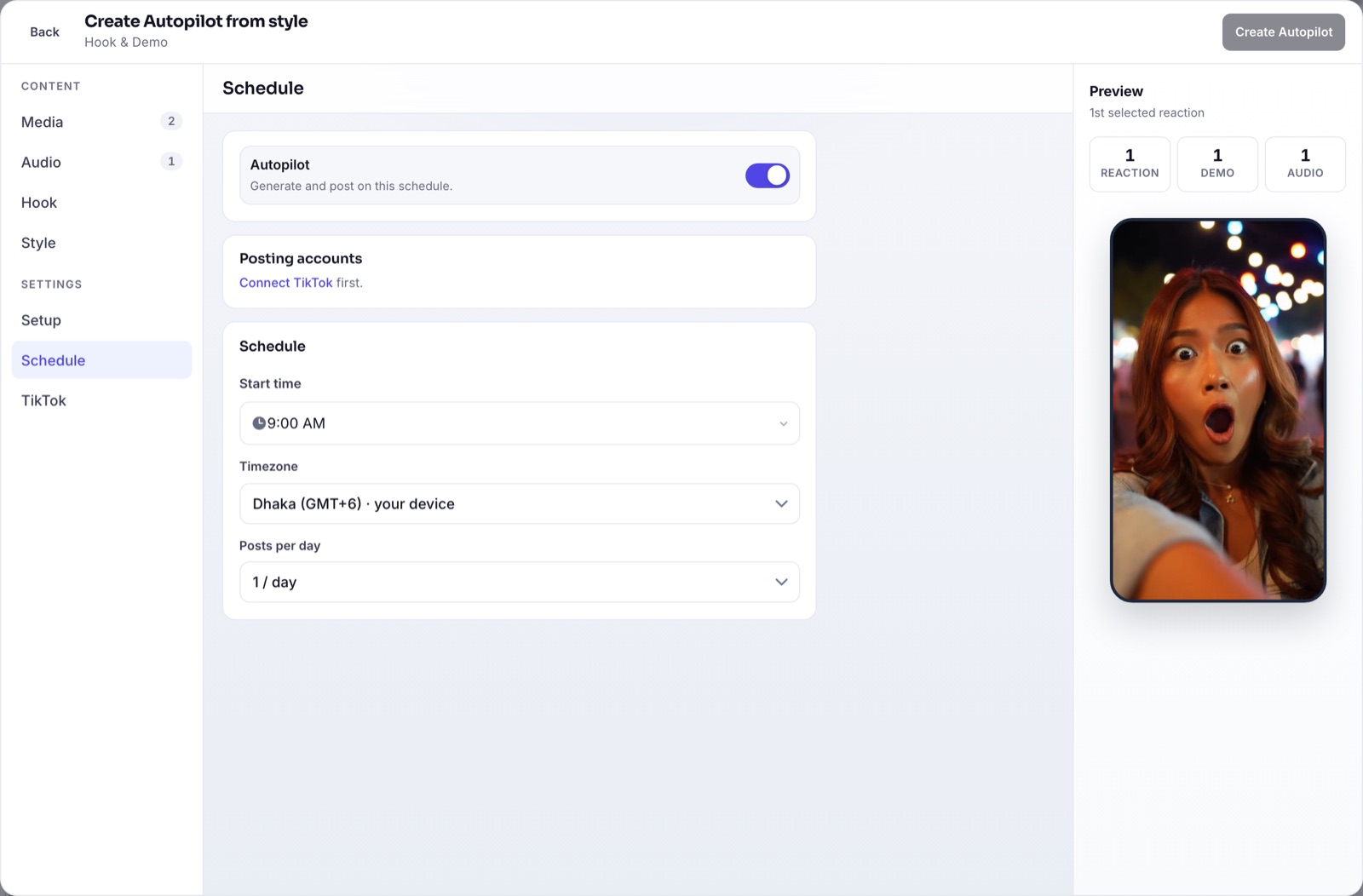
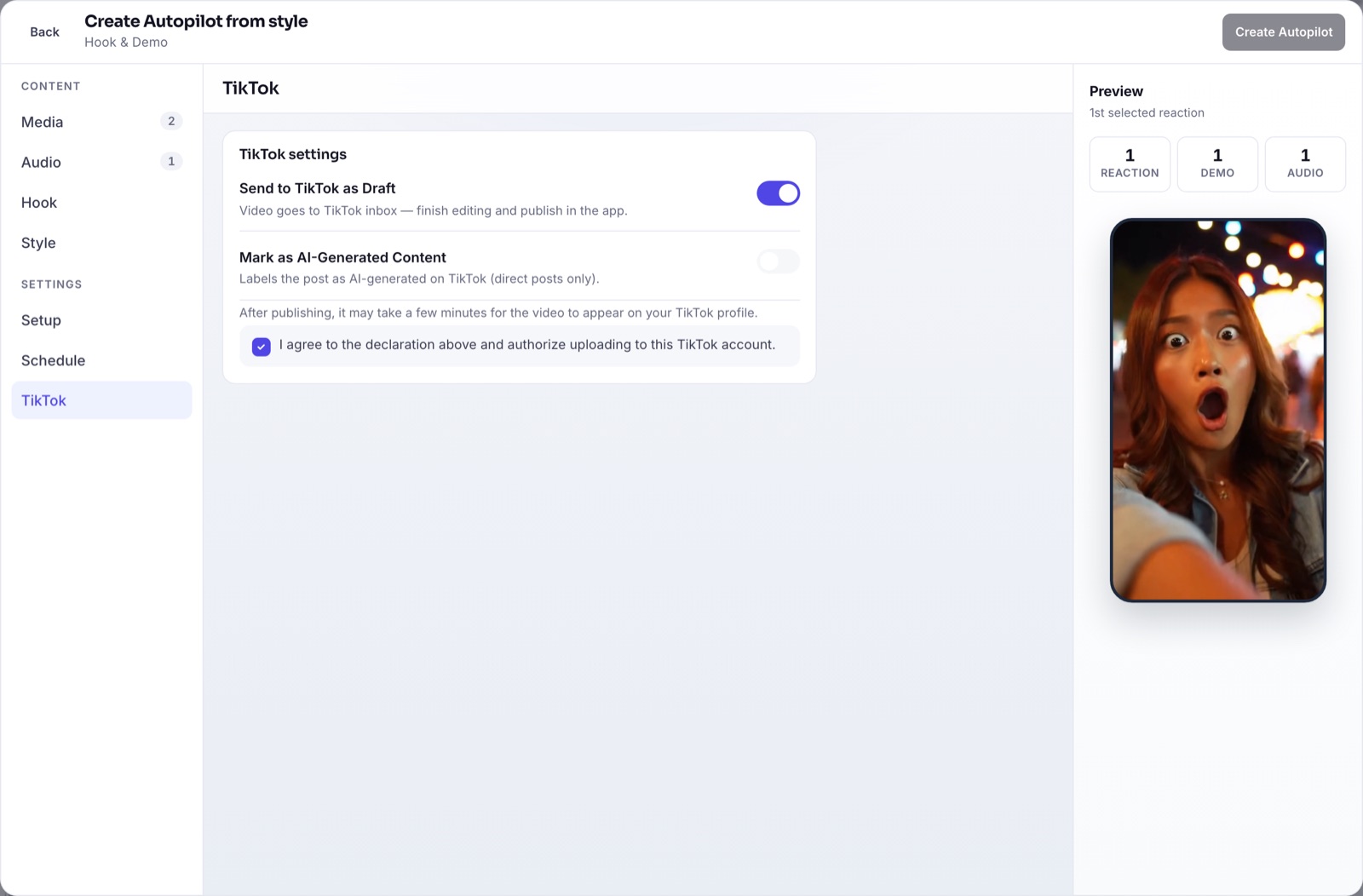
Each run creates a fresh post with a new mix of clip, sound and hook. Everything shows on one calendar, and analytics show views, likes and comments so you can see what's working. Start a free trial.
To decide how much to post, read how often should you post on TikTok.
FAQ
Is it safe to automate TikTok posting?
Yes, when you post through TikTok's official API and follow its content and disclosure rules. Avoid tools that automate likes, follows or comments.
Will automated posts all look the same?
Not if you give the system enough variety: several clips, photos, sounds and hooks. Each post should be a new combination.
Can I review posts before they go live?
Yes. Sending posts to TikTok drafts lets you check and edit each one in the TikTok app before publishing.