How to Schedule TikToks: Native Setup, Limits & Automation
Learn how to schedule TikToks natively on desktop, navigate platform limits, avoid multi-account penalties, and automate high-volume posting for apps.
You can schedule TikToks natively for free on desktop up to 10 days in advance, but you cannot schedule natively from the mobile app. For app founders and marketers, basic scheduling solves timing, but it leaves you manually rendering dozens of videos each week.
Here is how native desktop scheduling works, its exact platform limits, and how to build a scalable publishing schedule across multiple accounts without getting penalized by the algorithm.
How to Schedule TikToks Natively on Desktop (Step-by-Step & Current Limits)
Native scheduling is built into TikTok Studio on the web. It requires no third-party software, but it operates under strict rules.
Step-by-Step Desktop Scheduling Checklist
- Switch to Creator or Business Account: Personal accounts cannot schedule posts. Check your settings in the mobile app under Settings and privacy > Account to ensure you are on a Creator or Business profile.
- Open Desktop Browser: Log in at
tiktok.com/tiktokstudio(ortiktok.com/creator-center). - Upload Your Video: Drag your pre-edited video file into the web uploader. Wait for the upload and automated copyright check to complete.
- Set Metadata: Type your caption, add relevant hashtags, select a cover frame thumbnail, and set your privacy settings (public, friends, or private).
- Toggle 'Schedule video': Switch on the schedule toggle, select your desired date and time, and click Schedule.
Native Constraints Reference Table
| Constraint | Native Web Limit | Founder Impact |
|---|---|---|
| Scheduling Window | 15 minutes to 10 days ahead | Cannot batch a full month of content in advance. |
| Mobile App Scheduling | Not supported natively | Must use desktop web or push posts to drafts via mobile. |
| Post Editing | Locked once scheduled | Cannot edit caption, thumbnail, time, or video. You must delete and re-upload. |
| File Formats | MP4, WebM | MOV files frequently fail or convert slowly on web uploader. |
| Max File Size | 1 GB | High-res 4K renders often exceed limit; use 1080p 60fps. |
| Resolution | 720p minimum (1080x1920 recommended) | Horizontal 16:9 videos get letterboxed with black bars. |
| Commercial Music | Limited web library | Trending mainstream audio must be added via mobile drafts. |
Direct Publishing vs. Send to Drafts: Which Scheduling Mode to Choose
When using social tools or an automated TikTok post scheduler, you have two publishing modes: direct posting via the official API or sending to TikTok drafts.
Direct Publishing
Direct publishing sends the finished post straight to your public feed at the scheduled minute.
- Best for: Evergreen app screen recordings, product teardowns, feature demos, and automated carousels.
- Trade-off: You rely on the sound attached to the video file or royalty-free commercial tracks. You cannot use trending pop songs.
Send to Drafts
Send to drafts routes the prepared video, hook, and caption directly into your TikTok mobile app drafts folder. The scheduler triggers a push notification on your phone at your target time.
- Best for: Adding trending commercial audio inside the TikTok editor, attaching App Store links, tagging products, or performing a final visual check.
- Trade-off: Requires a manual tap on your phone to publish, which breaks hands-off automation.
Decision Matrix: Publish Direct vs. Send to Drafts
| Criteria | Publish Direct | Send to Drafts |
|---|---|---|
| Post volume | High (2–3 posts/day) | Low to Medium (3–5 posts/week) |
| Audio dependency | Original voiceover / demo audio | Trending TikTok viral sound required |
| Link / Store tags | Not needed or handled via bio link | In-feed App Store anchor link required |
| Founder time investment | 0 minutes post-setup | 2 minutes per post on mobile |
Illustrative Notification Review Checklist (Drafts Mode)
- Push notification received: Open post in TikTok drafts.
- Tap "Add sound" and select a trending audio clip (set sound volume to 5% if using voiceover).
- Verify safe zones: ensure on-screen hook text is not covered by TikTok's username or right-hand icons.
- Tap Post.
Building a High-Volume Weekly TikTok Schedule for an App
For app marketing, how often to post on TikTok comes down to testing hooks. Aiming for 1 to 3 posts per day gives the algorithm enough data points to test different audience pockets without triggering spam detection.
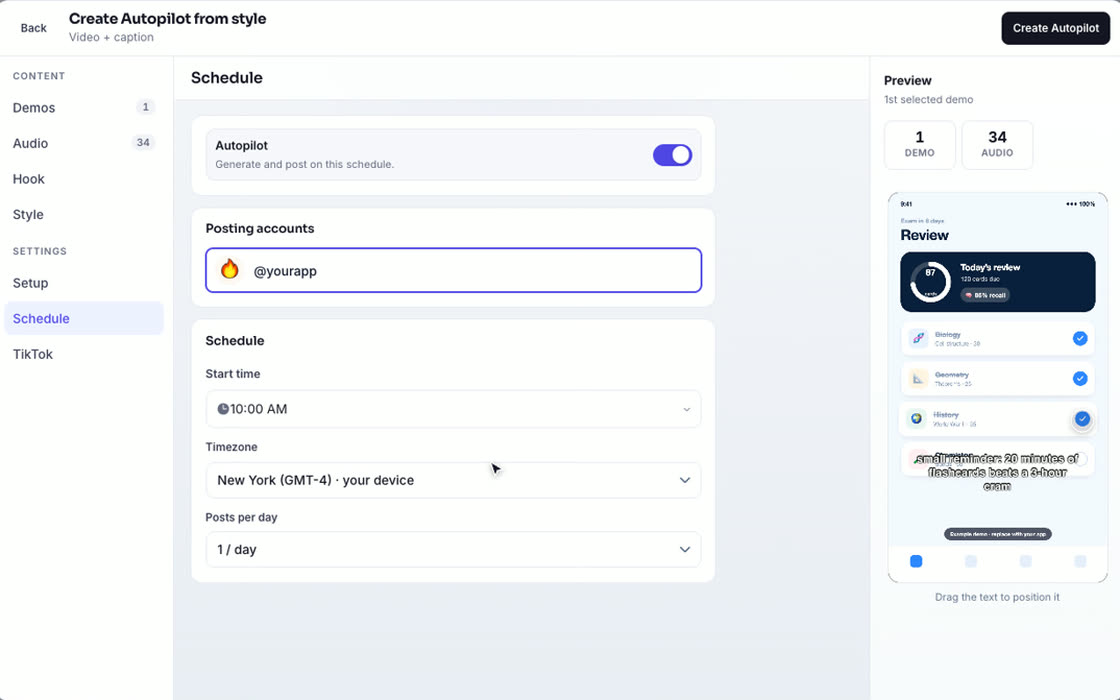
Generic advice often tells you to post at "optimal global times." For apps, align your schedule with your target user's daily habits in their primary timezone:
- 08:30 (Morning Commute): Quick habit checks, productivity hooks, morning mindset tips.
- 13:15 (Lunch Break): Entertaining feature teardowns, problem-solution comparisons.
- 19:45 (Evening Wind-Down): Educational listicle carousels, relaxed screen walkthroughs.
Sample 7-Day, 21-Post Scheduling Grid (EST)
| Day | Time | Format | Target Hook Angle |
|---|---|---|---|
| Mon | 08:30 | Hook & Demo | Problem: "Why your morning routine falls apart by 9 AM" |
| Mon | 13:15 | Photo Slideshow | Listicle: "5 iOS apps that replace 5 paid subscriptions" |
| Mon | 19:45 | Fade In/Out Demo | Result: "POV: Your screen time dropped a lot this week" |
| Tue | 08:30 | Video + Caption | Contrarian: "Stop using complex Notion templates for habits" |
| Tue | 13:15 | Hook & Demo | Feature: "The 10-second button that clears your receipt backlog" |
| Tue | 19:45 | Photo Slideshow | Mistake: "3 budgeting mistakes keeping you broke in your 20s" |
| Wed | 08:30 | Hook & Demo | Relatable: "If you can't focus for more than 15 minutes, watch this" |
| Wed | 13:15 | Fade In/Out Demo | Teardown: "How to automate your inbox triage" |
| Wed | 19:45 | Photo Slideshow | Comparison: "Spreadsheets vs. automated tracking apps" |
| Thu | 08:30 | Video + Caption | Quick Tip: "The hidden iPhone widget you aren't using" |
| Thu | 13:15 | Hook & Demo | Problem: "I tested 10 planner apps so you don't have to" |
| Thu | 19:45 | Photo Slideshow | Listicle: "4 tools remote software engineers use daily" |
| Fri | 08:30 | Fade In/Out Demo | Curiosity: "The app feature Apple should have built natively" |
| Fri | 13:15 | Hook & Demo | Result: "How I organized 2,000 photos in under 3 minutes" |
| Fri | 19:45 | Photo Slideshow | Weekly Wrap: "5 small productivity changes that compound" |
| Sat | 10:00 | Hook & Demo | Weekend Reset: "Sunday prep starts on Saturday morning" |
| Sat | 15:00 | Photo Slideshow | Educational: "Visual guide to habit stacking" |
| Sat | 20:00 | Video + Caption | Outcome: "What my clean phone home screen looks like" |
| Sun | 10:30 | Photo Slideshow | Planning: "The weekly review checklist I run every Sunday" |
| Sun | 14:00 | Hook & Demo | Reset: "Clean out your digital clutter before Monday" |
| Sun | 19:30 | Fade In/Out Demo | Proof: "Setting up my work week in 60 seconds flat" |
How to Schedule TikTok Photo Slideshows (Carousels) Automatically
Photo carousels can hold attention differently from standard videos. Viewers consume slides at their own reading pace, which gives you multiple chances to hook them before they scroll away. Learn more about structure in our guide to TikTok photo slideshows.
The native desktop uploader primarily caters to single MP4 videos. Scheduling carousels manually means saving images to your phone roll and creating the slideshow inside the mobile app every single day.
You can automate this using ClipsPilot's Slideshow Autopilot. You provide photo collections (your own uploads, or photos ClipsPilot finds for you), define a hook topic, and AI generates listicle slides formatted with readable typography (such as outline, white box, or pill text overlays). These are then scheduled directly to your connected TikTok accounts or sent to drafts.
5-Slide Listicle Carousel Storyboard
- Slide 1 (Hook Card): High-contrast aesthetic photo. Large pill-style text: "5 apps that quietly fix your sleep schedule."
- Slide 2 (Context/Pain): Minimalist bedroom photo. Pill overlay: "1. Stop using your default phone alarm (it's a jarring way to wake up)."
- Slide 3 (Value Slide): Desk/nightstand image. White box text: "2. Track wake-up consistency instead of total hours."
- Slide 4 (App Solution): App interface screenshot placed in vertical 9:16 canvas. Text overlay: "3. Use an app that locks your alarm until you scan a barcode."
- Slide 5 (Soft CTA): Clean lifestyle aesthetic. Text outline: "I track this whole morning routine in [Your App Name]. Link in bio to try it."
Managing Multi-Account Schedules Without Duplicate Content Penalties
Many mobile app companies run 2 to 5 targeted TikTok accounts pointing to the same product. For example, one account focuses on college study habits, another targets corporate remote workers, and a third covers general ADHD productivity tips.
The Duplicate Content Trap
If you upload the exact same MP4 video across three accounts at once, TikTok's content fingerprinting can flag the files as duplicates. The first account usually gets normal distribution; the second and third often reach far fewer people.
To schedule across multiple accounts safely:
- Vary the hook: Combine the same 10-second app screen recording with different intro hooks.
- Change audio tracks and captions: Use different AI-written captions and on-screen text placements.
- Stagger posting schedules: Never publish to multiple accounts at the exact same minute.
3-Account Distribution Schedule (1 Core Feature Demo)
| Account Profile | Hook Clip / On-Screen Text | Scheduled Time | Target Angle |
|---|---|---|---|
| Account A (Students) | Student desk clip: "How I cram for exams without losing focus" | Mon @ 08:45 EST | Academic performance |
| Account B (Remote Work) | Laptop coffee shop clip: "The app that stops Slack from ruining my workday" | Mon @ 12:30 EST | Deep work / corporate |
| Account C (ADHD Hacks) | POV phone tap clip: "My brain refused to start tasks until I tried this" | Mon @ 17:15 EST | Neurodivergent routines |
Eliminating the Video Creation Bottleneck with ClipsPilot
A traditional scheduler only solves the calendar. You still have to spend hours every week filming reaction faces, recording screen taps, and stitching edits in CapCut. When you run out of time to edit, your posting schedule goes dark.
ClipsPilot unifies creation and scheduling exclusively for TikTok app marketing. Instead of uploading finished videos one by one, you set up an Autopilot:
- Hook & Demo: Combines a short reaction hook clip with your screen recording.
- Fade In/Out: Adds an animated hook banner over your product demo.
- Slideshow Autopilot: Creates AI-written listicle carousels from photo collections.
- Video + Caption: Overlays AI-written copy directly onto your app recording.
You define the hook direction, select your posting times and days, and ClipsPilot generates the content and schedules it directly or sends it to TikTok drafts.
Time and Cost Comparison Table
| Workflow | Monthly Post Volume | Production Time | Monthly Tool Cost |
|---|---|---|---|
| Manual Editing + Generic Scheduler (CapCut + Buffer / Later) | 30 videos | ~18 hours | ~$15–$50 / mo |
| ClipsPilot Pro | 100 posts (Videos + Slideshows) | ~30 minutes setup | $19 / mo |
| ClipsPilot Growth | 300 posts (20 Autopilots) | ~1 hour setup | $39 / mo |
| ClipsPilot Agency | 2,000 posts (Multi-account) | ~2 hours setup | $149 / mo |
If you need help coming up with initial angles before setting your schedule, test ideas using our free TikTok hook generator.
TikTok Scheduling Troubleshooting and Post-Publish QA
Scheduled posts can occasionally fail. Run this regular audit to maintain an uninterrupted pipeline.
Why Scheduled TikToks Fail to Post
- Expired Account Authorization: Third-party posting permissions expire from time to time. If your queued posts show errors, reconnect your TikTok account via settings.
- Aspect Ratio Rejection: TikTok rejects videos that deviate from standard mobile vertical dimensions. Ensure your demo videos are rendered at 9:16 (1080x1920 pixels).
- Audio Copyright Mismatches: If direct-publishing via API, using commercial tracks without an active business license will cause the video to be muted or rejected. Use original audio or route through drafts.
Weekly Scheduled Post Audit Checklist
- Review Calendar Queue: Check your content calendar every Monday to ensure 7 full days of posts are scheduled across all connected accounts.
- Check 48-Hour Metrics: Identify which scheduled hooks generated above-average watch time and link clicks. Direct your next Autopilot hook batch toward those themes.
- Inspect TikTok Drafts: If using drafts mode, clear out published items and ensure upcoming draft posts have their target sounds pinned.
- Verify Profile Link Tracking: Check that your bio link attribution parameters (UTMs) are active and logging installs accurately.
FAQ
Can you schedule TikToks from the mobile app for free?
No. TikTok does not support native scheduling inside the mobile app. To schedule natively for free, you must log into TikTok Studio on a desktop browser. Alternatively, you can use a scheduling tool that pushes scheduled posts to your mobile drafts folder.
How far in advance can you schedule TikTok videos?
TikTok's native desktop web uploader allows you to schedule videos between 15 minutes and 10 days in advance. Dedicated third-party automation tools can queue posts months in advance on their internal calendar and publish them via the official API as the scheduled date arrives.
Does scheduling TikToks hurt your reach or views in the algorithm?
No. TikTok's recommendation algorithm evaluates videos based on watch time, completion rate, shares, and engagement. Videos published via the official Content Posting API or scheduled via native desktop Studio are treated the same as videos posted manually from the app.
Can you schedule TikTok photo slideshows or only MP4 videos?
TikTok's native desktop uploader is designed primarily for video files. To schedule native photo carousels automatically, use a tool like ClipsPilot's Slideshow Autopilot, which generates multi-image listicle slides and publishes them as carousels or sends them to your drafts.
Can you edit a scheduled TikTok post after it's queued?
Not on TikTok's native desktop uploader. Once a native post is scheduled, its video, caption, thumbnail, and scheduled time are locked. If you notice a mistake, you must delete the scheduled post and upload it again.
How do you schedule posts across multiple TikTok accounts at once?
Native desktop scheduling requires you to log out and log in to each account individually. To manage multi-account scheduling efficiently, connect your accounts to a tool like ClipsPilot, configure Autopilots for each account, and set unique posting schedules to avoid duplicate content flags.